Introduction

Minecraft Gradient Generator

Preview a transition between two Minecraft blocks, or switch to Custom-color palette to match your own HEX/RGB colors. Refine the allowed blocks, save a reusable design and export the selected block IDs.

Minecraft Gradient Generator

Keep the original block transition, or match your own HEX/RGB colors to a reusable block palette. Same page, different input modes.

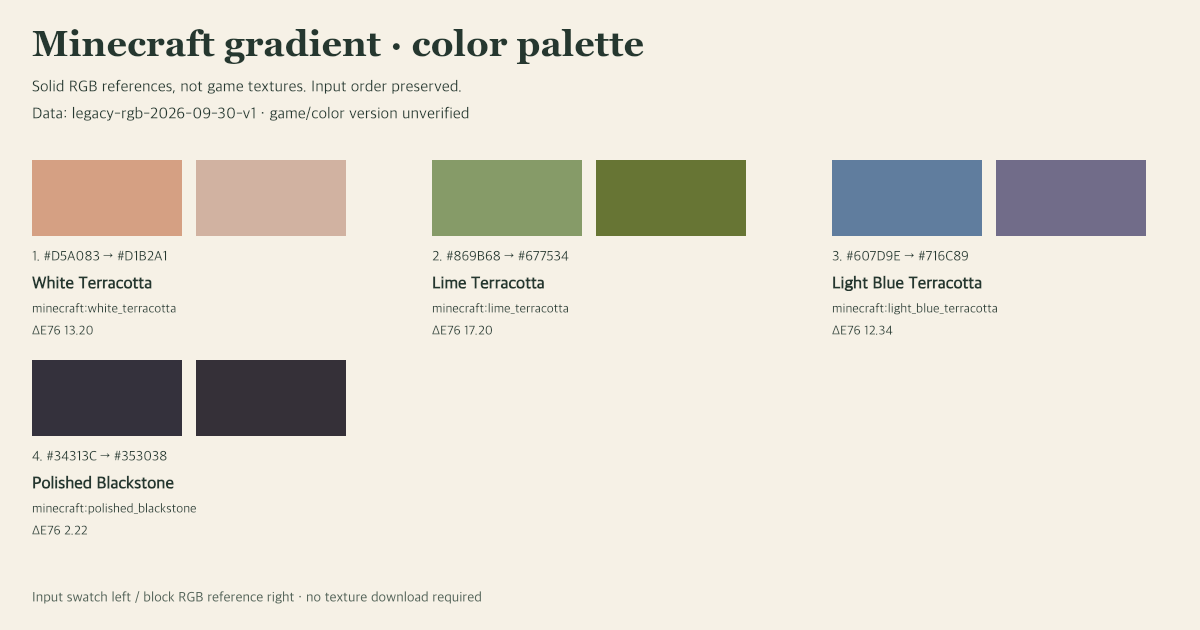
Actual default palette export: four input swatches matched to white terracotta, lime terracotta, light blue terracotta and polished blackstone; solid colors, not game textures

Introduction

What is the Minecraft Gradient Generator?

The two-block gradient keeps its endpoint pickers, length, randomness, zoom and exclusion controls. The additional Custom-color palette mode matches up to 12 HEX/RGB inputs to a curated 83-block set. Filter materials, exclude unwanted blocks and save the actual palette as JSON, CSV or a solid-swatch PNG. Neither mode places blocks in your world.

Minecraft Block Gradient Controls

Keep the original block-to-block workflow, then use the optional palette mode when your starting point is a color rather than a block.

Choose Two Blocks

Select the starting and ending blocks with the Block 1 and Block 2 pickers. The tool shows intermediate blocks in the preview.

Adjust Gradient Length

Change the Gradient Length field or slider to explore shorter and longer transitions between the chosen blocks.

Tune Randomness

Move the Randomness slider to compare a steadier sequence with a more varied mix of blocks.

Exclude Unwanted Blocks

Click an intermediate block, then choose Exclude Block in its details. The two endpoint blocks cannot be excluded.

Zoom Into the Preview

Use the plus and minus controls to inspect block textures and the order of the displayed transition.

Regenerate and Compare

Use the refresh control to generate another result with the current settings, or change an endpoint block to compare combinations.

Match Custom HEX or RGB Colors

Palette mode accepts up to 12 colors, typed individually or generated from two endpoints. Preview 2–12 ramp colors before applying them. Matching uses deterministic CIELAB ΔE76 within your selected material groups; optional uniqueness assigns each block at most once, in input order.

Save the Editable Palette

Design JSON and fragment share links preserve input colors, group filters, unique-block setting and the complete palette exclusion snapshot. They do not save the original gradient’s random texture preview.

Export Actual Block Matches

Download CSV or result JSON with block IDs, RGB references and numeric color distances. Download a PNG of the same solid-color swatches and labels without fetching remote textures.

How to Use the Minecraft Gradient Generator

Start with the original two-block transition, or choose the optional custom-color mode. Each mode keeps its own inputs; copied exclusions are a snapshot, not live two-way synchronization.

1. Select Two Blocks

Choose the start and end blocks in the Block 1 and Block 2 selectors.

2. Set Length and Randomness

Use the Gradient Length and Randomness controls to change the visible block transition.

3. Inspect and Refine

Zoom in, exclude an intermediate block through its details, or regenerate the preview and try another pair.

4. Try Custom-color Palette

Switch modes and type #RGB, #RRGGBB or rgb(r, g, b), or open Generate a color ramp to preview and apply 2–12 colors including both endpoints. Select allowed materials, optionally copy gradient exclusions, then export or share the applied palette.

5. Review and Save Your Matches

Check the input and block RGB reference side by side. Exclude a poor match and review the replacement before exporting the result. Save Design JSON to restore the exact palette later.

Common Questions

Your Minecraft Gradient Generator Questions, Answered

The original two-block controls remain available. The new palette mode adds custom colors and reusable exports, with explicit data and matching limits.

What does this Minecraft gradient generator show?
It previews a sequence of blocks between the two endpoint blocks you select. The result is a visual reference for planning a build.
How do I choose the blocks?
Use the Block 1 and Block 2 pickers inside the embedded tool. Choose another pair whenever you want to compare a different transition.
How can I change the gradient length?
Enter a value in Gradient Length or move its slider. The preview updates to show the new sequence length.
What does the Randomness control do?
It changes how varied the displayed block sequence is. Try a lower or higher setting and compare the preview.
Can I leave out a block I do not want?
Yes, for an intermediate block. Click it, choose Exclude Block in the dialog, and review the excluded-block list. The endpoint blocks remain selected.
Does this tool place blocks in Minecraft?
No. It is a browser-based visual planner. Use the preview as a reference when selecting and placing blocks in your own build.
Can I use my own HEX or RGB colors?
Yes. Switch to Custom-color palette and enter 1–12 colors as #RGB, #RRGGBB or rgb(r, g, b), with RGB channels from 0 to 255. Invalid colors pause matching and exports rather than silently substituting another color.
How are palette blocks selected?
The palette converts sRGB values into CIELAB using D65 reference white and selects the lowest Euclidean ΔE76 distance among allowed, non-excluded blocks. Matches follow your color-input order; equal distances use Java block ID order. Unique mode greedily removes each chosen block from later choices, so it is not a globally optimized assignment. The original gradient keeps its existing Lab interpolation and separate color-distance calculation.
What happens if I exclude every block?
The palette shows a clear no-allowed-block status and does not substitute a block outside your filters. If unique mode exhausts the available blocks, remaining input rows show no match. CSV and result JSON preserve those rows with an explicit status rather than hiding them.
Are the palette colors verified for the latest game version?
No. The legacy-rgb-2026-09-30-v1 snapshot reuses 83 curated entries from this site’s existing RGB table. The original RGB extraction method and exact game or texture version are unknown. Java ID spellings were cross-checked against the community-maintained PrismarineJS Java 1.20.4 block data, not a current game execution. Lighting, resource packs, texture detail and orientation can change actual appearance.
Do exclusions stay synchronized between both modes?
No. Copy gradient exclusions takes a one-time snapshot of the original gradient’s individual and preset exclusions and merges it into the palette. Later changes are separate. Restoring palette exclusions does not change the original gradient or its protected endpoint blocks.
What is saved, shared and exported?
Design JSON and the share link preserve the palette’s colors, allowed material groups, uniqueness option, versioned dataset and full exclusion list. Result JSON and CSV contain the selected Java block IDs, swatches, color distance and no-match status. PNG is a solid-swatch reference, not a texture image. These files and links do not save the original two-block random field or place blocks in Minecraft.
Can a palette be used without uploading my design?
Yes. Palette matching, design import and file exports run locally in your browser. A share link puts the settings in the URL fragment rather than a cloud database. There is no account or automatic saved draft; export the design before leaving the page.
Can you show a reproducible exclusion example?
With all five groups allowed, unique blocks enabled and no exclusions, the default first color #D5A083 selects minecraft:white_terracotta in this dataset. Exclude that result and the first choice becomes minecraft:cherry_planks. The other default inputs are #869B68, #607D9E and #34313C. Save Design JSON after the exclusion to reproduce that exact allowed set and output.

Try a Minecraft Block Gradient

Choose two blocks for a transition, or switch to Custom-color palette to match your own colors, refine exclusions and save the resulting block list.